How to Export Deals From HubSpot With Their Associated Contacts

You exported your deals to move them somewhere else. You opened the file, went looking for each deal's contact — and found a single cell: Kimberly Rogers (erichahn@example.net). A name and an email, mashed together, and nothing else. No phone, no company, no lifecycle stage — none of the fields you'd actually migrate.
Here's the short answer, up front: in HubSpot, deals and contacts are separate objects. A deals export gives you the associated contact as a label — its name, usually with the email in parentheses — plus the contact's Record ID. It does not give you the contact's properties. It looks like contact data; it isn't. To get clean, complete contact details lined up with each deal, you export both objects and join them on Record ID — the whole job, laid out below.
Why you get a label, not the contact's fields
HubSpot doesn't store a contact as a field on a deal. It stores them as two different record types — two objects — with an association linking them. A deal points at a contact; it doesn't contain one.
When you export deals, HubSpot gives you the deal's own properties plus a column for each association. An association column can name the record on the other end — its label and its ID — but it can't reach inside that record and pull the fields that live there: phone, company, lifecycle stage, job title, anything custom. For contacts, that label happens to include the email in parentheses, which is why the column looks more useful than it is. You get a name and an email in one cell, and none of the rest.
This isn't a setting you missed or a permission you need. It's the data model working exactly as designed. Most guides skip straight to the workaround without explaining it — which is why the fix feels like a hack instead of the intended path.
Method 1 — Export deals with their association columns
Start here. This gets you every deal and the link to its contact.
Open CRM → Deals and select the deals you want (or keep the whole view). Click Export to open the Export view dialog, then expand Customize. HubSpot's defaults are set to give you the least data, so three things need changing:
- File format → CSV. Set this first — including all associated records (below) requires CSV, and CSV has no column limit.
- Properties included in export → All properties and all associations on records. The default, Properties and associations in your view, only exports the columns you happen to have on screen.
- Associations included in export → Include all associated records in each association column, and leave Include associated record name ticked. The default, up to 1,000 associated records, silently truncates any deal with more than 1,000 of one association type.
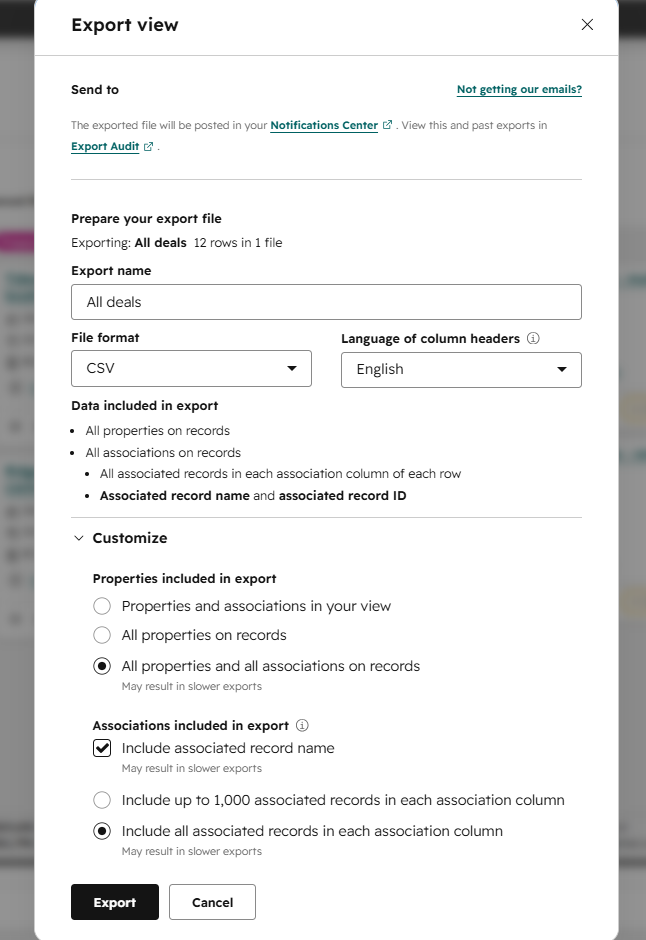
HubSpot spells out the catch right there in the dialog. Under "Data included in export," it says the association columns hold the associated record name and associated record ID — a label and a number, nothing else about that contact. Open the file: one row per deal, the deal's own properties, then — far to the right, after a long run of association columns for every object type, most of them empty — the two that matter. Associated Contact holds the contact's label: Kimberly Rogers (erichahn@example.net), name and email in one cell. Associated Contact IDs holds the Record ID, like 533497883354. What you don't get is a clean email, phone, company, lifecycle stage, or any other field — and some deals have no contact at all, so those cells are blank. Method 1 gets you a label and a link, not the contact's details.
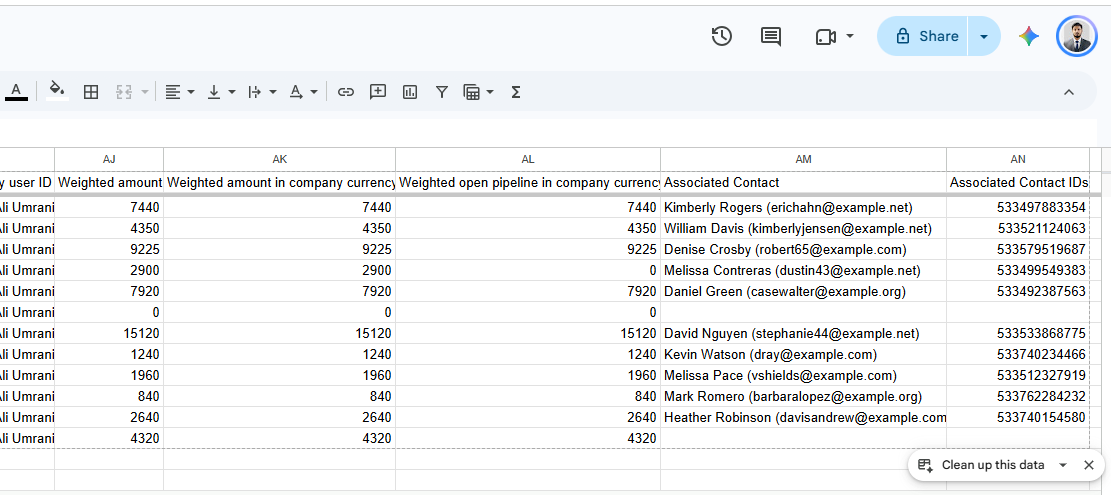
Name (email) label plus a separate ID column — and none of the contact's other fields.Method 2 — Export contacts filtered by deal properties
Sometimes you don't want deals at all — you want the people, filtered by something about their deals. "Everyone with an open deal over $5,000," say, for an outreach list.
For that, build an active list with a deal-property filter and export the list. You get full contact properties — email, phone, lifecycle stage — for that segment, but no deal values on the row; a contact export is contact data.
Right tool when you're pulling a segment to contact; wrong tool when you're migrating and need the deal and contact on one line. For that, you need both exports and a join.
Method 3 — Export both and join on Record ID
This is where every forum thread ends up, usually with someone saying "just VLOOKUP it." Here's the actual procedure.
- Export your deals (Method 1). Keep the column with the associated contact's Record ID.
- Export your contacts, making sure Record ID is included along with the properties you want — email, phone, whatever you're migrating.
- Join them in your spreadsheet, matching the deal's contact ID against the contact's Record ID.
The formula, in Google Sheets or Excel. Say the deal's contact ID sits in column F, and your contacts export has Record ID in column A and Email in column D:
=XLOOKUP(F2, Contacts!$A:$A, Contacts!$D:$D)
Or the classic, if you're on older Excel — the FALSE is not optional, because Record IDs aren't sorted:
=VLOOKUP(F2, Contacts!$A:$D, 4, FALSE)
Then the three things that will bite you:
- One deal with several contacts. The association cell holds multiple IDs, semicolon-separated (
8842; 8843). A plain lookup only reads the first. Split the cell into columns first (Data → Split text to columns, on;), or run the join from the contact side instead. - One contact on several deals. Joining contacts onto deals means that contact repeats — once per deal. That's correct for a deal-level file. Don't "remove duplicates" by contact, or you'll delete real deals.
- Why Record ID, and not the email in the label. The deal's Associated Contact cell shows an email, but don't join on it — it's fused to the name, missing on contacts that have none, and shared across several contacts when a deal has more than one. Emails also get reused (
info@), changed, and shared. The Associated Contact IDs column is the clean, unique, permanent key. Join on that.
What never comes out, no matter which method
Notes, logged emails, calls, meetings, tasks — HubSpot's engagements — are not in a deal or contact export at all. A record export is properties and associations. That's the whole scope.
If you need the activity history too, that's a separate route: an individual record's data export, an engagement/activity report, or the engagements API. Check this before you cancel — the missing activity timeline is what people discover the week after they've moved everything else and turned HubSpot off.
Limits worth knowing before you start
- 300 exports per rolling 24 hours, three at a time in the UI. (The export API is stricter — 30 per 24 hours, one at a time.) Batch accordingly.
- A CSV auto-zips once it's over 2MB. Expect a
.zip, not a raw.csv, on any real dataset. - Column caps are a format problem, not a HubSpot one. XLS tops out at 256 columns, XLSX at 16,384. CSV has no column limit — which, with "all properties and associations," is exactly why you pick CSV.
- Download links expire after 30 days. Miss the window and you re-export. (The export log itself stays visible far longer.)
- Export has to be enabled on your user role. If you don't see the Export button, that's why — an admin has to grant it.
A clean export, and where to send it
Done right, the file that lands in your next CRM has one row per deal with the contact's name, email, and phone already attached — no orphaned IDs, no VLOOKUP graveyard in a side tab. That's the finish line, and it's very reachable once you know deals and contacts come out separately and join on Record ID.
Moving off HubSpot? We'll do this part for you.
This is exactly the cleanup our free migration help handles. Tell us what you're moving and we'll pull your deals, contacts, and the associations between them into one clean file — Record IDs matched, contact details on every deal row — or load it straight into nrtur. No forum threads, no orphaned IDs.
Email hello@nrtur.io with a sentence or two about your setup, and we'll take it from there. If you're weighing where to land, our rundown of the best HubSpot alternatives for small teams is a good place to start.
FAQ
Does a HubSpot deal export include the contact's email?
Only as part of a label. The Associated Contact column shows the contact as Name (email) — so the email is technically there, but fused to the name in one cell, not a clean field, and with none of the contact's other properties (phone, company, lifecycle stage). For usable contact data, export contacts separately and join on Record ID.
Can I export deals with contact details in a single file? Not in one native export. You export deals and contacts separately, then join them in a spreadsheet on Record ID. There's no HubSpot setting that flattens a contact's properties onto a deal row for you.
What's the difference between exporting a list and exporting from the Deals index? The Deals index export is deal-centric — one row per deal, with contact links as association columns. A list export (Method 2) is contact-centric — one row per contact, filtered however you like, but with no deal values on the row.
Do HubSpot exports include notes, emails, and activities? No. Record exports contain properties and associations, not engagements. Activity history needs a separate export route or the API.
Which contact ID do I join on — Record ID or email? Record ID. It's unique and permanent. Emails repeat across shared inboxes, change over time, and are sometimes blank, so they make an unreliable key.
Settings and limits here were checked against HubSpot's export documentation and a live export run in August 2026. HubSpot changes this UI periodically — if a label or cap looks different on your screen, trust your screen.